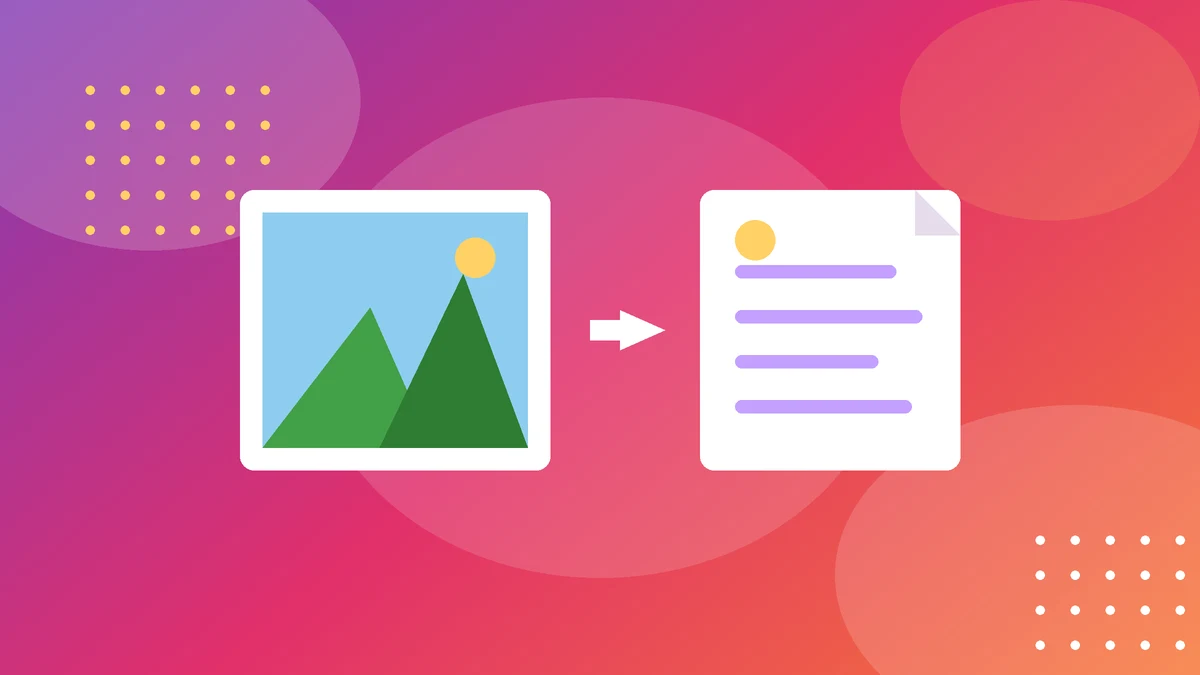
What you can do with this tool
- Turn photos into one PDF: bundle a document, a form, or homework into a single file.
- Send a file that behaves: share a PDF that prints the same on every printer, in the order you chose.
- Make a portfolio or photo book: arrange your images into pages and download them as one document.
- Keep it private: convert on your own device — your photos never leave your browser.
It takes seconds — and the rest of this guide shows you how to use it well.
Use the free JPG to PDF tool: Drop in your JPGs, arrange them, pick a page size, and download your PDF — no signup, no upload — open the tool →
📌 Key takeaways
- One PDF, any number of photos: one PDF can hold one photo or a hundred, in the order you choose
- A4 for anything official: it prints everywhere without scaling surprises; fit-to-image keeps each photo at its own size
- Quality in, quality out: converting does not sharpen a JPG, and a good converter embeds the image as it is
- Watch the size: ten 3 MB photos make roughly a 30 MB PDF, and many email systems cap attachments around 25 MB
📄 JPG to PDF — at a glance
The key numbers from this guide, in one place.
1What is JPG to PDF?
JPG is the format cameras and phones use for photos. PDF is the format the world uses for documents. Converting JPG to PDF puts your images into a document file — one PDF can hold one photo or a hundred, in the order you choose, at a size you choose.
Why would you want that? Because PDFs behave. A photo sent on its own can open at any size, get compressed by a chat app, or print oddly. A PDF keeps your pages in order, keeps the layout fixed, and prints the same on every printer. That is why offices, schools and government forms ask for PDFs, not loose photos.
Common uses: turning photos of a document into a single file, making a portfolio or a photo book, sending scanned homework or a signed form, or preparing images for print. If the receiver asked for a PDF, a folder of JPGs is not the same thing — and a screenshot of a JPG is worse.
2How to use the tool
- Add your JPG files. Drag them in or pick them from your device. You can add several at once.
- Arrange the order. Drag pages into the sequence you want — the first image becomes page one.
- Pick a page size. A4 is the safe choice for documents and printing. Fit-to-image keeps each photo at its own size.
- Choose margins and orientation if you need them, then download. Your files never leave your browser — the conversion happens on your own device.
If an image comes out sideways, rotate it before converting rather than after. And if a photo looks small on the page, check the fit setting: "fit to page" stretches the image to fill the page, while "keep size" leaves it at its true dimensions.
3How the conversion works
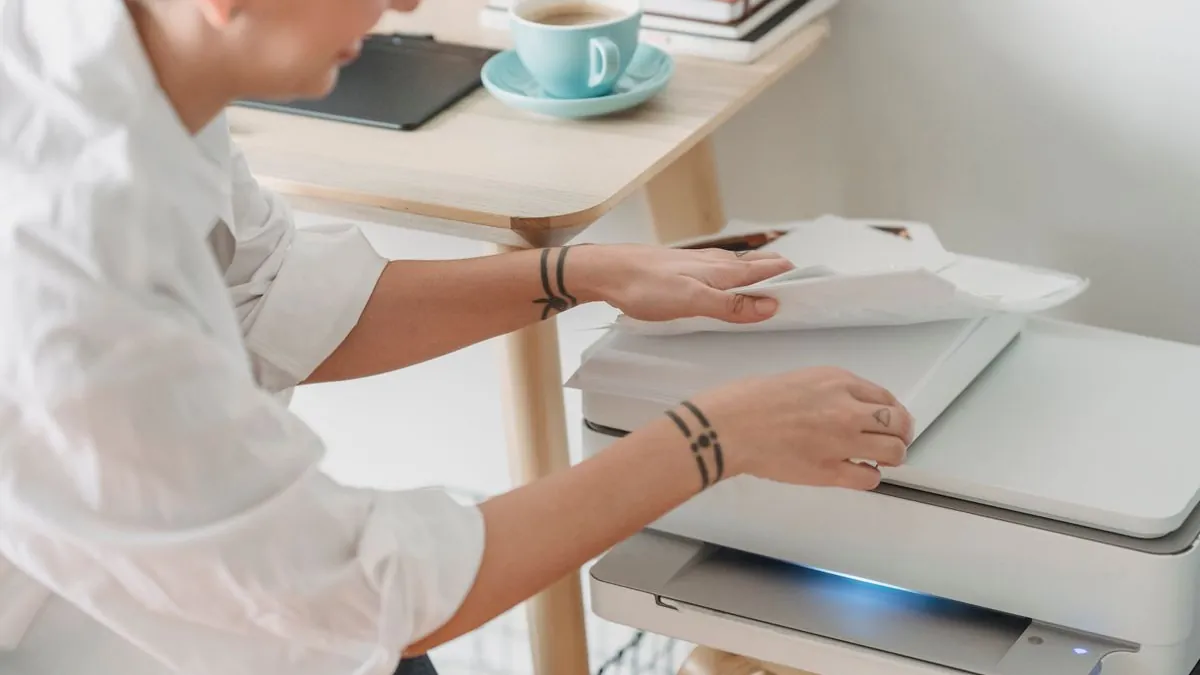
There is no maths to learn here — but it helps to know what happens under the hood. A JPG is a grid of pixels. A PDF page is a canvas with a fixed size. The converter places each image on its own page (or several per page, if you choose), scaling it to fit, and writes the result as a PDF file.
Quality is the key question. A JPG is already compressed, so converting it to PDF does not magically sharpen it — but it does not have to blur it either. A good converter embeds the image as it is, so the PDF keeps the same pixels as the original photo. Problems start when a tool re-compresses the image hard to shrink the file, or stretches a small image onto a big page.
File size follows the images: ten 3 MB photos make roughly a 30 MB PDF. If the PDF is too big to email, compress the JPGs a little first, or reduce the page count — not the quality to the point where text in the photo turns unreadable.
4A short history of JPG and PDF
JPG and PDF are both children of the early 1990s. JPEG — the Joint Photographic Experts Group — published its image standard in 1992, and it solved a problem that had blocked digital photos: a photo file was enormous, and JPEG's clever compression shrank it to a tenth of the size with barely visible loss. Digital cameras, and later phone cameras, ran on it.
PDF arrived a year later, in 1993, when Adobe launched it as a way to make a document look the same on any computer. The two formats were made for each other: a JPG is a picture, and a PDF is a page — so putting JPGs into a PDF is the natural way to turn photos into a document you can print, email, or archive.
The use has not changed much since. People still turn photos into PDFs for the same reasons: a set of receipts becomes one expense file, a stack of scanned pages becomes one report, and a hundred photos become one document in the order you choose. The tools changed — from desktop software to free browser tools — but the job is the same one it was in 1993.
5Worked example: a five-page scanned form
Ahmed has five phone photos of a signed form and the office wants one PDF.
Step 2: He orders them page 1 to 5 and picks A4, portrait, small margins.
Step 3: He downloads one PDF of about 10 MB — clean, in order, and ready to email.
Two things he checks before sending: each page is the right way up, and the handwriting is readable when zoomed in. A quick look at the PDF on his phone takes ten seconds and saves the embarrassment of sending a sideways, blurry file.
For a photo album the same steps apply, with one change: a wide layout and larger pages suit photos better than A4 portrait. A holiday album of 20 photos becomes a single PDF that anyone can open, on any device, without an app.
6Common mistakes
- Sending photos instead of the PDF. If the receiver asked for a PDF, loose JPGs look unprofessional and print unpredictably.
- Wrong page order. Phone galleries sort by date, not by logic. Check the order before you convert — page 3 of a form should not come first.
- Mixing orientations. A sideways photo in the middle of a document makes the whole file look careless. Rotate first.
- Over-compressing to shrink the file. Squeezing a 10 MB PDF to 1 MB can turn fine text into mush. Shrink the images a little, or split the PDF, instead.
One more: using a photo of a document when a scan is available. A scan is flat, evenly lit and straight. A phone photo taken at an angle, in poor light, converts into a PDF that is just as crooked and dim. Good input, good output.
7Tips for a clean PDF
- Name files in order first. Rename photos 01, 02, 03 before uploading and the order takes care of itself.
- Use A4 for anything official. It prints everywhere without scaling surprises.
- Check the file size before sending. Many email systems cap attachments around 25 MB. If your PDF is bigger, compress it or split it into parts.
- Keep the originals. A PDF is a finished product, not a backup. Keep the JPGs in case you need to re-do a page later.
JPG to PDF is a small job, but it is one that people do badly under time pressure. Thirty seconds of ordering and checking is the difference between a file that looks professional and one that gets sent back.
8Putting it all together
Here is the habit to take away: before you send any PDF you made from photos, open it once and flip through it. Check the order, check the orientation, check that the text is readable. Ten seconds of checking is the difference between a file that looks professional and one that comes back with questions.
And keep the workflow simple: good photos in, ordered pages, A4 for anything official, and the originals saved. Most PDF problems come from rushing the setup, not from the conversion itself. Slow down for the first minute and the rest of the job takes care of itself.
Try the free JPG to PDF
Drop in your JPGs, arrange them, pick a page size, and download your PDF — no signup, no upload.
Try the free JPG to PDF100% free · No account · Private by Qevryn
| Page size | Best for | Notes |
|---|---|---|
| A4 | Official documents and printing | Prints everywhere without scaling surprises |
| Fit-to-image | Photos at their own size | Keeps each photo’s proportions |
| Wide layout | Photo albums | Suits wide photos better than A4 portrait |
9Frequently asked questions
Is JPG to PDF free?
Yes — our tool is free, with no signup, and it runs in your browser, so your images are not uploaded to a server.
Will converting JPG to PDF reduce quality?
No, if the tool embeds the image as it is. Quality only drops if the image is re-compressed hard or stretched onto a much bigger page. Keep the page size sensible and the quality stays put.
Can I convert several JPGs into one PDF?
Yes — add all the images, arrange them in order, and download a single PDF with one image per page (or more, if you choose).
What page size should I choose?
A4 portrait for documents, forms and anything that will be printed. Fit-to-image or a wide layout for photo albums and wide pictures.
What is the difference between JPG and PDF?
JPG is an image format for photos; PDF is a document format that holds pages in a fixed layout. A PDF can contain JPG images, text and more, and it looks the same on every device.
iLoveUnit is a Qevryn product — free, private, no signup.
Keep exploring
These tools go well with the JPG to PDF:
Related guides
More step-by-step guides on this topic: