What you can do with this tool
- Turn screenshots into one PDF: notes, receipts or chat screenshots become a single tidy file.
- Send images as a document: a PDF opens anywhere, in order, on any device.
- Build a simple portfolio or handout: your PNGs become pages you can print or email.
- Keep text sharp: PNG is lossless, so screenshots stay crisp in the PDF.
Nothing leaves your browser — and the rest of this guide shows you how to size and order your pages.
Use the free PNG to PDF tool: Drop in your PNGs, arrange them, pick a page size, and download your PDF — no signup, no upload — open the tool →
📌 Key takeaways
- PNG is lossless: the pixels in the PDF are the same pixels as the original image, so screenshots stay sharp
- Keep PNG for text and lines, JPG for photos: PNG files are much bigger than JPGs for photos, with no visible benefit
- Transparency becomes white: a logo with a transparent background gets a white box in the PDF
- Don’t stretch small images: a 400-pixel-wide screenshot on an A4 page will look soft
📄 PNG to PDF — at a glance
The key numbers from this guide, in one place.
1What is PNG to PDF?
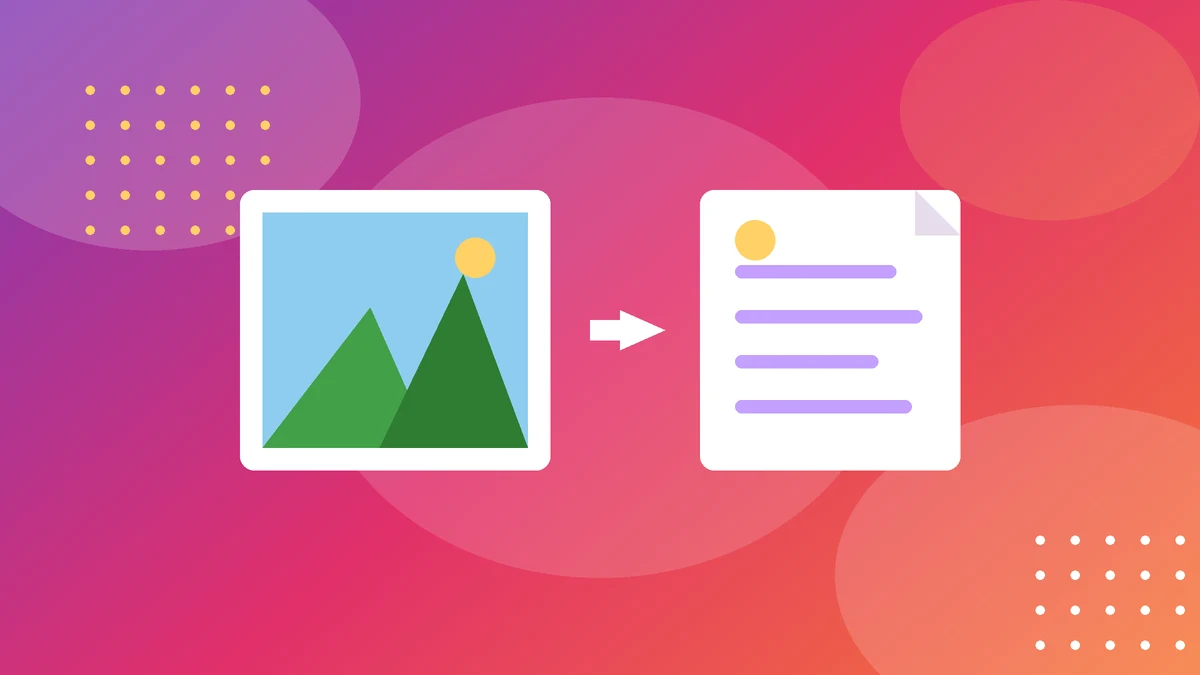
PNG is the image format for sharp graphics — screenshots, logos, diagrams, and anything with text or clean lines. PDF is the format for documents. Converting PNG to PDF puts your images into a document file, in the order you choose, at a size you choose — one PNG per page, or several.
Why convert? Because a folder of screenshots is hard to read, hard to print and easy to lose. A single PDF keeps them in order, prints cleanly, and opens the same on every device. That is why offices ask for PDFs of receipts, screenshots and forms — not loose image files.
PNG has one feature JPG does not: transparency. A logo with a transparent background is a PNG, and converting it to PDF needs care — the transparent parts become white (or the page colour) in the PDF, which is usually what you want for printing, but worth knowing before you convert a logo for a coloured background.
2How to use the tool
- Add your PNG files. Drag them in or pick them from your device. You can add several at once.
- Arrange the order. Drag pages into the sequence you want — the first image becomes page one.
- Pick a page size. A4 is the safe choice for documents and printing. Fit-to-image keeps each picture at its own size.
- Download the PDF. Your files never leave your browser — the conversion happens on your own device.
If an image has transparency and it comes out with a white background, that is normal — PDF pages are not transparent. If you need the image on a coloured background, flatten it onto that colour first, in an image editor, before converting.
3How the conversion works
A PNG is a grid of pixels, often with a transparency channel. A PDF page is a canvas with a fixed size. The converter places each image on its own page, scaling it to fit, and writes the result as a PDF.
Quality is the key question, and PNG has an advantage: it is lossless, so the pixels in the PDF are the same pixels as the original image. A screenshot converted to PDF stays as sharp as the screenshot. Problems start when a small image is stretched onto a big page — a 400-pixel-wide screenshot on an A4 page will look soft, because the pixels are being spread too thin.
File size follows the images: PNGs are bigger than JPGs, so a PDF of ten large screenshots can be tens of megabytes. If it is too big to send, convert the PNGs to JPG first (for photos) or reduce their size — but for screenshots with text, keep PNG, because JPG blurs sharp edges.
4A short history of PNG and PDF
PNG was born out of a patent fight. In 1994, Unisys began enforcing its patent on the compression used in GIF images, and developers who had built the early web on GIFs suddenly needed a free alternative. A group of them designed PNG — Portable Network Graphics — and the first specification was published in 1996. It was free, it handled transparency, and unlike JPEG it was lossless: every pixel stayed exactly as it was.
PDF had arrived three years earlier, in 1993, when Adobe launched it as a format for documents that look the same everywhere. Putting PNGs into a PDF became the natural way to turn screenshots, diagrams, and receipts into documents — because PNG's lossless quality means a screenshot stays sharp, where a JPEG would blur the text.
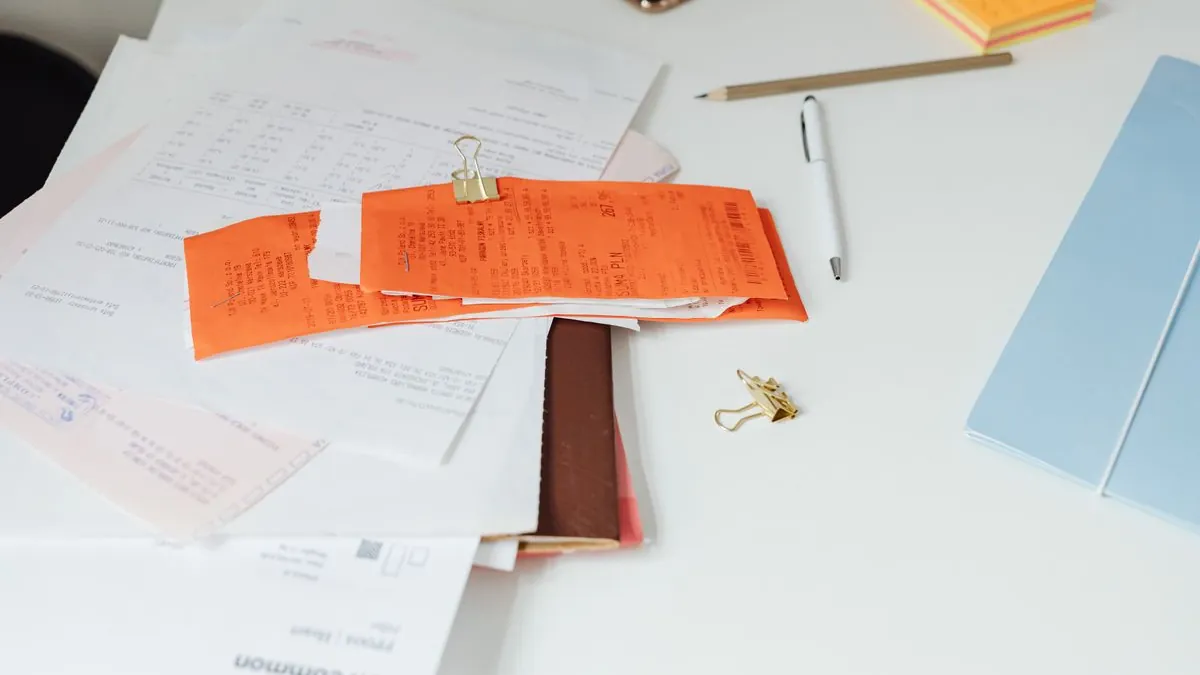
The combination is still the standard for document scans and receipts. A phone screenshot saved as a PNG, dropped into a PDF, prints exactly as it looked on screen — which is why the expense receipts in this guide's example come out so clean.
5Worked example: expense receipts
Omar has eight PNG screenshots of receipts and his finance team wants one PDF.
Step 2: He picks A4 portrait with small margins.
Step 3: He downloads one PDF — eight pages, in order, sharp enough to read every total.
He checks one thing before sending: the smallest receipt is readable when zoomed in. A screenshot taken at low resolution stays low resolution in the PDF, so a blurry receipt needs to be re-taken, not re-converted.
For a design portfolio the same steps apply, with one change: fit-to-image page size, so each graphic keeps its own proportions instead of being stretched onto A4. The result is a portfolio that looks like a designed document, not a pile of screenshots.
6Common mistakes
- Stretching a small image onto a big page. A tiny screenshot on A4 looks blurry. Use fit-to-image, or take the screenshot again at higher resolution.
- Forgetting transparency becomes white. A logo with a transparent background gets a white box in the PDF. Fine on white paper, odd on a coloured page.
- Wrong page order. Screenshots sort by date or by filename, not by logic. Check the order before you convert.
- Using PNG for photos. PNG files are much bigger than JPGs for photos, with no visible benefit. Use PNG for screenshots and graphics, JPG for photos.
One more: sending the PDF when the receiver wanted the images. Some design tools need the PNG itself. Check what the receiver asked for — a PDF is a document, not a substitute for the original image file.
7Tips for a clean PDF
- Name files in order first. Rename images 01, 02, 03 before uploading and the order takes care of itself.
- Use A4 for anything official. It prints everywhere without scaling surprises.
- Keep PNG for text and lines. Screenshots, receipts and diagrams stay sharp in PNG. JPG is for photos.
- Keep the originals. A PDF is a finished product, not a backup. Keep the PNGs in case you need to re-do a page later.
PNG to PDF is a small job, but it turns a pile of screenshots into a document someone can actually read. Thirty seconds of ordering and checking is the difference between professional and sloppy.
8Putting it all together
Here is the habit to take away: keep PNG for screenshots and graphics, JPG for photos, and A4 for anything official. Those three choices cover almost every file you will ever convert — and they stop the two classic mistakes, blurry text and giant files, before they happen.
And keep the originals. A PDF is a finished product, not a backup. When a page needs to change next month, you will want the PNG to re-convert from — not a PDF you have to cut apart again. Convert for sending, keep the images for editing.
Try the free PNG to PDF
Drop in your PNGs, arrange them, pick a page size, and download your PDF — no signup, no upload.
Try the free PNG to PDF100% free · No account · Private by Qevryn
| Image type | Use PNG or JPG? | Why |
|---|---|---|
| Screenshots, receipts and diagrams | PNG | Sharp text and lines stay crisp |
| Photos | JPG | Much smaller files, no visible benefit to PNG |
| Logos with transparency | PNG | Transparent parts become white in the PDF |
9Frequently asked questions
Is PNG to PDF free?
Yes — our tool is free, with no signup, and it runs in your browser, so your images are never uploaded to a server.
Will converting PNG to PDF reduce quality?
No — PNG is lossless, so the pixels in the PDF are the same as in the original. Quality only drops if a small image is stretched onto a much bigger page.
What happens to transparency?
Transparent areas become white (or the page colour) in the PDF, because PDF pages are not transparent. If you need a coloured background, flatten the image onto it first.
Can I convert several PNGs into one PDF?
Yes — add all the images, arrange them in order, and download a single PDF with one image per page.
Should I use PNG or JPG for a PDF?
PNG for screenshots, logos, receipts and anything with text or sharp lines. JPG for photos — it makes much smaller files with no visible loss.
iLoveUnit is a Qevryn product — free, private, no signup.
Keep exploring
These tools go well with the PNG to PDF:
Related guides
More step-by-step guides on this topic: