
1What does compressing a PDF do?
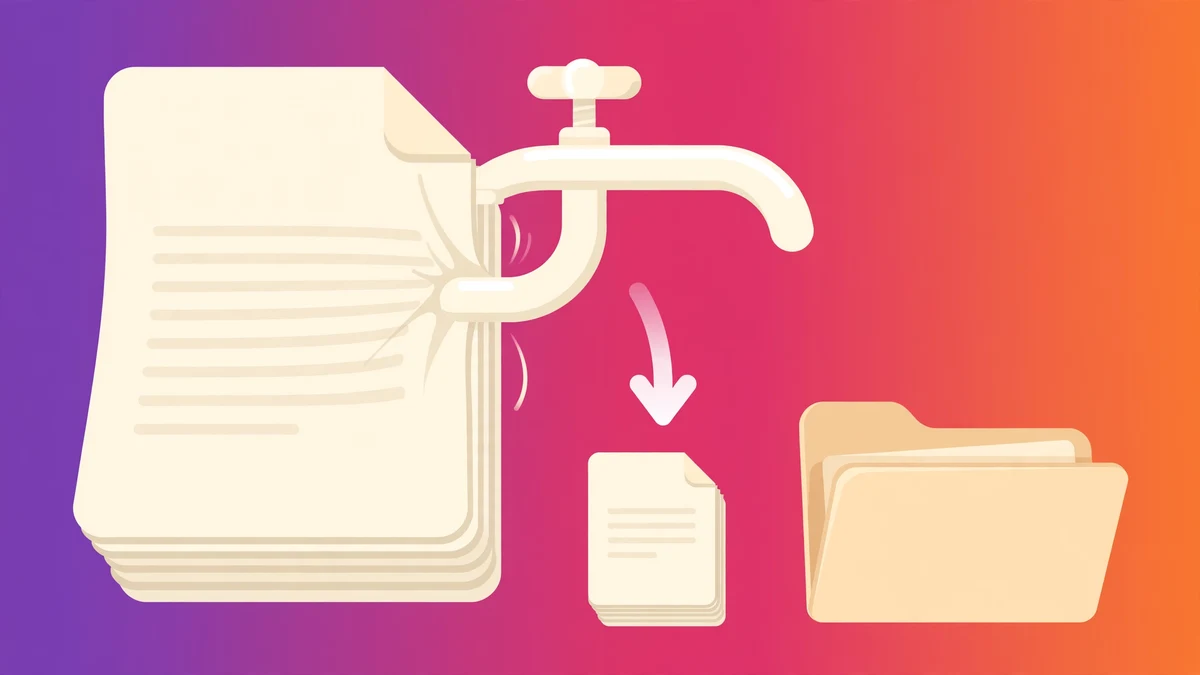
A PDF is a container: it holds text, fonts, images, and sometimes scanned pages or embedded files. Compressing it means shrinking that container without losing the pages. The file gets smaller; the document stays the same.
Most of the savings come from the images. A photo scanned at high resolution can be megabytes on its own, and a PDF with twenty such pages is huge. Compression re-saves those images at a lower resolution and a tighter quality setting — often cutting the file to a tenth of its size while the pages still look fine on screen and in print.
Text compresses too, but text is tiny to begin with. If your PDF is mostly text, compression will not do much — the file was never big. If it is full of photos and scans, compression can work wonders.
2How to use the PDF compressor
No software to install, no account, and your file never leaves your browser:
- Drop your PDF onto the tool or click to choose it from your device.
- Pick a compression level if the tool offers one — lighter compression keeps more quality, stronger compression makes a smaller file.
- Wait a few seconds while the tool rebuilds the PDF in your browser.
- Download the smaller file and check it opens and looks right before you send it anywhere.
Because the work happens in your browser, the file is never uploaded to a server. That matters for anything private — contracts, medical records, ID documents — which you should never send to a random compression site.
3How compression actually shrinks a file
Three things happen inside a compressor, and knowing them helps you predict the result:
- Images are downsampled. A 300-dots-per-inch scan meant for printing is re-saved at 150 or 72 dpi, which is plenty for screens. This is where most of the saving comes from.
- Images are re-encoded. Photos are saved as JPEG with a lower quality setting, and the compressor throws away data the eye barely notices. Dropping JPEG quality from 90 to 70 can halve the size with almost no visible change.
- Dead weight is removed. Embedded fonts you never use, duplicate images, metadata, and hidden layers get stripped out. Some PDFs carry the same font file five times; compression keeps one copy.
What compression does not do is delete pages or text. A compressed PDF has the same words on the same pages. If pages are missing after compression, something went wrong — check the file before sending it.
4How small can a PDF go?
It depends on what is inside. Roughly:
| PDF type | Typical result | Quality note |
|---|---|---|
| Text-only document | Small saving (10–30%) | No visible change |
| Slides with a few images | 50–70% smaller | Looks the same on screen |
| Scanned pages (photos of paper) | 70–90% smaller | Text still readable, fine for sharing |
| Print-ready file with huge photos | 80–95% smaller | Too soft for professional printing |
The rule is simple: the more image data a PDF holds, the more compression can save. A 40 MB scanned report can become 4 MB and still read perfectly. A 200 KB text contract might only drop to 180 KB — and that is fine, because it was never the problem.
5Mistakes people make compressing PDFs
- Compressing for print. A file compressed for email looks fine on screen but prints soft and blurry. Keep an uncompressed original for printing, and compress only the copy you send.
- Compressing twice. Each round throws away more image detail. Always start from the original file.
- Not checking the result. Open the compressed file and flip through it before sending. A rare bad compression can garble a page, and you want to find out before your boss does.
- Uploading private files to random sites. Some free compressors upload your file to their servers. For anything sensitive, use a tool that works in your browser, like ours — the file never leaves your device.
- Expecting miracles on text PDFs. If the file is already small, compression cannot invent savings. If you need it smaller, split it or remove pages instead.
6When compression is not enough
Sometimes compression cannot get a PDF small enough, and knowing the alternatives saves a lot of frustration. The first option is splitting: if the file is a 40-page report and the reader only needs 5 pages, split those pages out and send them alone. A 5-page file is a fraction of the size of the full report, and the reader gets exactly what they need.
The second option is going back to the source. If the PDF was made from scanned pages, re-scanning at a lower resolution — 150 dpi instead of 300, greyscale instead of colour — produces a much smaller file before any compression. A fresh scan at the right settings beats compressing a bloated scan every time, because the compressor cannot put back the quality that a bad scan never had.
The third option is changing the format. If the document is a single page — a certificate, an ID, a form — a JPG of that page is often smaller than the PDF version, and many portals accept JPGs. If it is a text document, a fresh PDF built from the text (rather than a scan of the text) can be ten times smaller than the scanned version.
And sometimes the answer is to ask. If a portal's limit is too small for your document, contact the organisation — many have an email alternative, a higher limit on request, or an option to submit in person. A five-minute email can save hours of fighting with a file that was never going to fit.
7Tips for the smallest file with the best quality
Match the compression to the job. Sending by email or WhatsApp? Strong compression is fine. Archiving for later printing? Use light compression and keep the original too.
Split before you compress. If only some pages are heavy with images, split those pages out, compress them, and merge back — or just send the pages the reader needs.
Check the target size first. Many forms and portals state a limit — 2 MB, 5 MB, 10 MB. Compress to just under it; there is no prize for going smaller than needed at the cost of quality.
Keep the original. Storage is cheap. Keep the full-size PDF, and treat the compressed copy as the one you send, not the one you keep.
Compress your PDF — try the free tool
Drop in any PDF and download a smaller version in seconds. Free, private, and nothing is uploaded — it all happens in your browser.
🗜️ Open the Compress PDF Tool100% free · No account · Private by design
8Frequently asked questions
How do I compress a PDF for free?
Drop the file onto our free compressor on this page. It runs entirely in your browser — no upload, no account, no watermark — and you download the smaller file in seconds.
Does compressing a PDF reduce quality?
It can, but usually not noticeably. Compression mainly shrinks images; text stays identical. Light compression is invisible on screen, while very strong compression can make photos look soft.
How much can a PDF be compressed?
It depends on the content. Text-only PDFs shrink a little (10–30%), while scanned or photo-heavy PDFs often shrink 70–90%. A 40 MB scanned report can become 4 MB and still read fine.
Is it safe to compress a PDF online?
It depends on the tool. Ours processes the file inside your browser, so it never leaves your device. Avoid uploading private documents to services that send files to their servers.
Can I compress a PDF on my phone?
Yes — our compressor works in a mobile browser the same way it does on a computer. Open the tool, pick the file, and download the smaller version.
Why is my PDF still big after compressing?
Either it is mostly text (which was never large), or the images were already small. In that case, split out unneeded pages or remove embedded files instead of compressing again.
Keep exploring
Compression is one PDF trick. These tools handle the rest: