
1What is merge PDF?
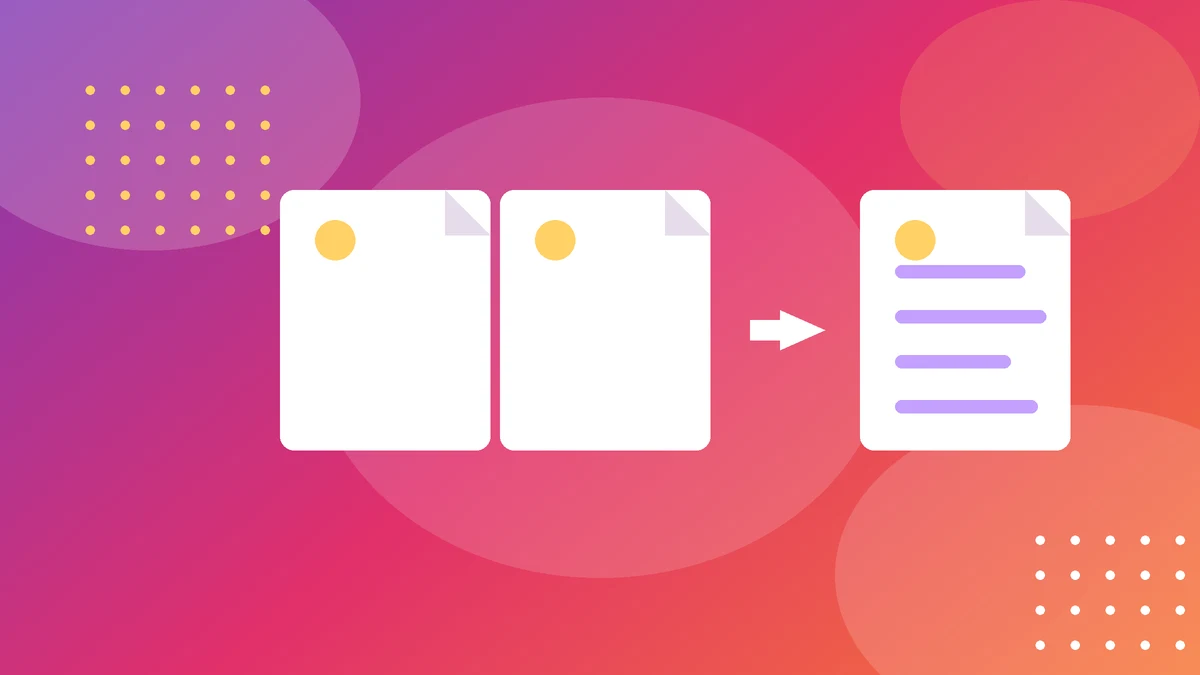
Merging PDFs means joining two or more PDF files into a single PDF. The pages keep their content, and you choose the order — the first file's pages come first, then the second file's, and so on. The result is one file you can send, print or archive as a whole.
Why merge? Because a document that arrives in pieces is annoying to read and easy to lose. A job application with a CV, a cover letter and certificates becomes one file. A report written in chapters becomes one report. Ten scanned pages become one document instead of ten attachments. One file is easier to store, easier to search, and much harder to read in the wrong order.
Our tool merges entirely in your browser — your files are never uploaded to a server. That matters for anything with personal or work information in it: the file stays on your device from start to finish.
2How to use the tool
- Add your PDF files. Drag them in or pick them from your device, in any order.
- Arrange the order. Drag the files into the sequence you want — the top file's pages come first.
- Check the page counts if you need to — a 20-page file followed by a 2-page file is fine, but make sure the long one is where you expect it.
- Download the merged PDF. One file, all the pages, in your order.
If you need to remove a page or re-order pages inside a single file, split the PDF first, keep the parts you want, and merge those. Merging joins whole files; splitting is the tool for surgery inside one.
3How merging works
There is no maths here, but it helps to know what happens. A PDF is a collection of pages, and each page is a self-contained description of what to draw. Merging simply takes the pages from each file, in order, and writes them into a new file one after another.
Quality does not change: the pages are copied, not re-drawn, so text stays sharp and images keep their resolution. File size is roughly the sum of the parts — two 5 MB files make about a 10 MB file. If the merged file is too big to email, compress it afterwards rather than shrinking the originals.
One thing merging does not do: it does not unify fonts, page sizes or margins. If one file is A4 and the next is a wide sideways page, the merged PDF keeps both sizes as they are. That is normal — readers handle mixed page sizes fine — but for a polished result, make the source files the same size first.
4Worked example: a job application
Fatima is applying for a job. She has a 2-page CV, a 1-page cover letter, and a 3-page certificate file. The employer asked for "one PDF".
Step 2: She downloads a single 6-page PDF.
Step 3: She opens it and checks the order: letter, CV, certificates — exactly as the employer will read them.
The check matters: if she had added the files in the order her file manager listed them, the certificates might have come first and the cover letter last — a small thing that makes a poor first impression.
Another example: a 40-page report written in four chapters of 10 pages each. Merging the chapters in order gives a single report with a natural flow — and a single file to version-control, instead of four files that drift apart.
5Common mistakes
- Wrong order. Files merge in the order you add them, not in alphabetical or date order. Always check the sequence before downloading.
- Merging password-protected files. A locked PDF cannot be merged until its password is removed. Remove the password first (if you have the right to), then merge.
- Forgetting the file gets big. Ten 10 MB scans make a 100 MB file that no email system accepts. Compress the scans or the merged file before sending.
- Losing the originals. Keep the source PDFs. If you need to swap one chapter later, re-merging from the originals is far easier than editing the merged file.
One more: merging files with different page orientations. A sideways page in a portrait document is fine for reading on screen, but it prints awkwardly. If the document will be printed, make the orientations match first.
6Tips for a clean merged PDF
- Name files in order first. Rename them 01-cover, 02-cv, 03-certificates and the order takes care of itself.
- Preview before sending. Open the merged file and flip through it once. Ten seconds of checking beats sending a scrambled document.
- Compress if it is too big. Merge first, compress second — compressing the merged file once is cleaner than compressing each part.
- Use it for archiving too. A year's receipts or a project's documents merged into one file per year is far easier to find later than a folder of loose pages.
Merging is a small job, but it is one of those small jobs that makes you look organised. One file, right order, quick check — done.
7Putting it all together
Here is the habit to take away: name your files in order before you merge — 01, 02, 03 — and preview the merged file before you send it. Those two moves prevent almost every merging mistake there is: wrong order, missing pages, and files that arrive scrambled.
And keep the originals. A merged PDF is a finished product, not a backup. When one chapter changes next month, you will want the source files to re-merge from — not a single file you have to cut apart again. Merge for sending, keep the parts for editing.
Try the free Merge PDF
Drop in your PDFs, arrange them, and download one merged file — no signup, no upload.
Try the free Merge PDF100% free · No account · Private by design
8Frequently asked questions
Is merging PDFs free?
Yes — our tool is free, with no signup, and it runs in your browser, so your files are never uploaded to a server.
Will merging reduce the quality?
No. Pages are copied as they are, so text and images keep their quality. The file size is roughly the sum of the files you merged.
Can I merge more than two PDFs?
Yes — add as many as you need, arrange them in order, and download a single file with all their pages.
Can I change the page order after merging?
Not inside the merged file — order is set when you merge. If you need a different order, merge again from the originals in the new sequence, or split the merged file first.
What if my PDF is password protected?
Locked PDFs cannot be merged until the password is removed. Remove the password first if you have the right to, then merge.
Keep exploring
These tools go well with the Merge PDF:
Related guides
More step-by-step guides on this topic: