The quick answer
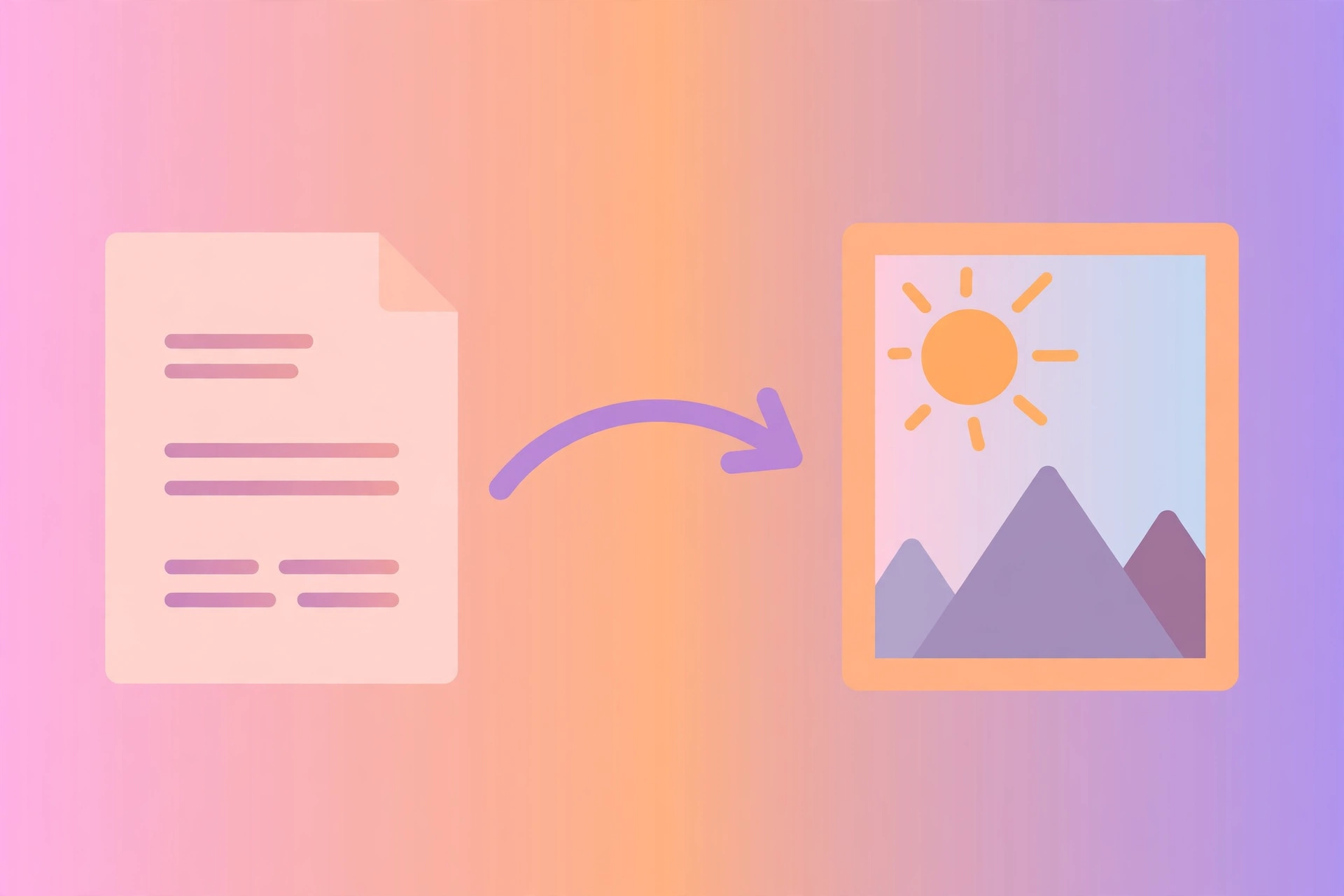
Pick a PDF, hit Convert, and every page becomes a JPG image you can download — one by one, so you only take the pages you need. Free, no account, nothing uploaded.
It is the tool for the everyday jobs: pulling one page out of a PDF to share, turning a PDF form into images for a website, or saving a page as a photo to send on WhatsApp.
How it works
PDF to JPG vs the alternatives
Runs in your browser. No upload, no account.
Works for one page, but the quality depends on your screen.
Most converters upload your PDF to their server. Ours never leaves your device.
Full control, but paid software you have to install.
Easy mistakes to avoid
- Picking low quality for print. Standard quality (1×) looks fine on screen but soft in print. Use High (2×) for anything you will print.
- Forgetting which page is which. Downloads are named page-1.jpg, page-2.jpg and so on — the page number is in the name.
- Password-protected PDFs. Locked PDFs cannot be converted here. Unlock the file first.
Tips
- High quality for text. Small text stays readable at 2×. At 1× it can blur.
- JPG is for photos. For sharp text and line art, PNG would be crisper — but JPG files are much smaller, which is why this tool uses JPG.
- Download only what you need. Converting a 100-page PDF makes 100 images. Take the pages you need and skip the rest.
The complete guide
It explains how each PDF page becomes a JPG image, which DPI and quality settings to pick, and the best uses for the images.
Frequently asked questions
How do I convert PDF to JPG?
Choose a PDF file, pick a quality, click Convert to JPG, then download the pages you need as JPG images.
Is PDF to JPG free?
Yes — free, with no account and no watermark on the images.
Are my files uploaded anywhere?
No. The conversion runs entirely in your browser. Your PDF never leaves your device.
Can I convert just one page?
Yes. Convert the whole PDF, then download only the page you need — each page has its own download button.
What quality should I pick?
High (2×) for printing or small text, Standard (1×) for screen viewing and sharing. Higher quality means bigger files.
Can I convert a password-protected PDF?
No. Locked PDFs need to be unlocked first — this tool cannot open them.
Related tools
More tools you may find handy: